

Creating a recurring order system is a practical way to automate repeat purchases and reduce manual tasks. If you run an online store or offer products that customers buy regularly, setting up a way to create recurring orders can improve consistency and make the process easier for both you and your buyers. Instead of placing the same order again each time, customers can choose a schedule that fits their needs, and the system handles the rest.
In this tutorial, we will explain how to create a recurring order from start to finish. You will learn how to set order frequency, manage customer preferences, and connect the process to payment and inventory systems. This setup works well for subscription-based services, repeat deliveries, or any business that deals with regular demand.
Whether you are using a custom-built platform or an e-commerce tool that supports automation, the steps are generally the same. Define the product, set the interval, and automate the rest of the order process. By following along, you will be able to build a reliable system that supports scheduled orders with minimal input. While advanced coding is not required, basic knowledge of e-commerce platforms will help.
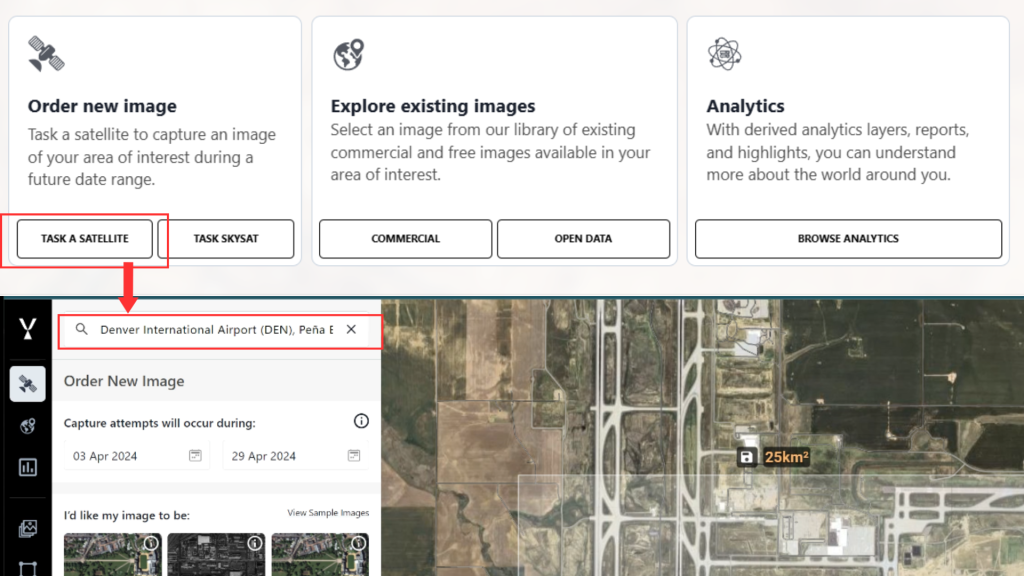
1. Start a New Task
- Click “Task a Satellite” from the main menu.
- Use the search bar to locate your area of interest on the map.
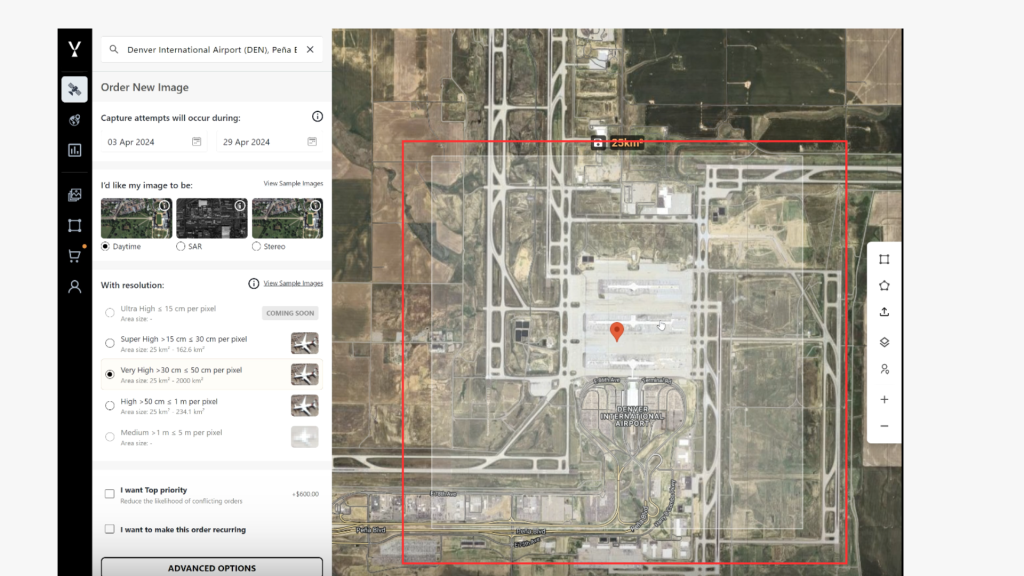
2. Define the Capture Area
- A bounding box will appear over the selected location.
- Reposition or resize the box to match your desired coverage area.
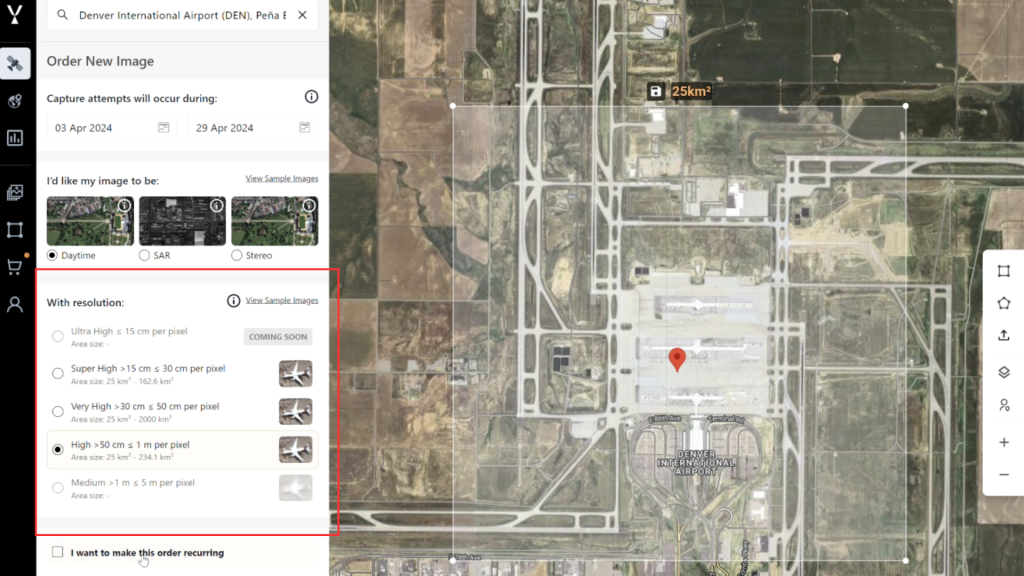
3. Select Image Parameters
- Scroll down to the sensor options section.
- Select the sensor type that meets your requirements.
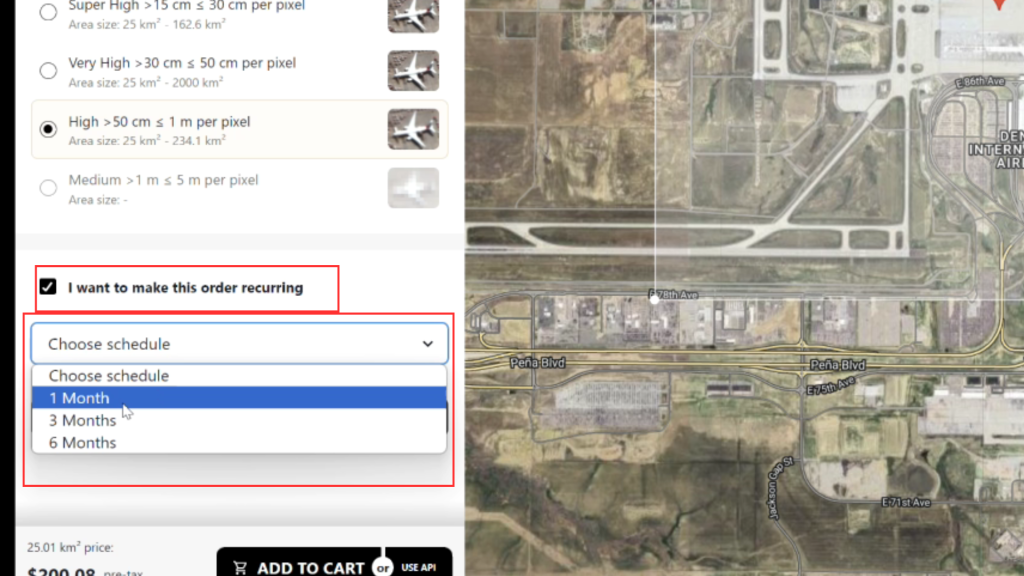
4. Enable Recurring Order
- Check the box labeled “I want to make this order recurring.”
- Choose your preferred schedule (e.g., every month, every 3 months, etc.).
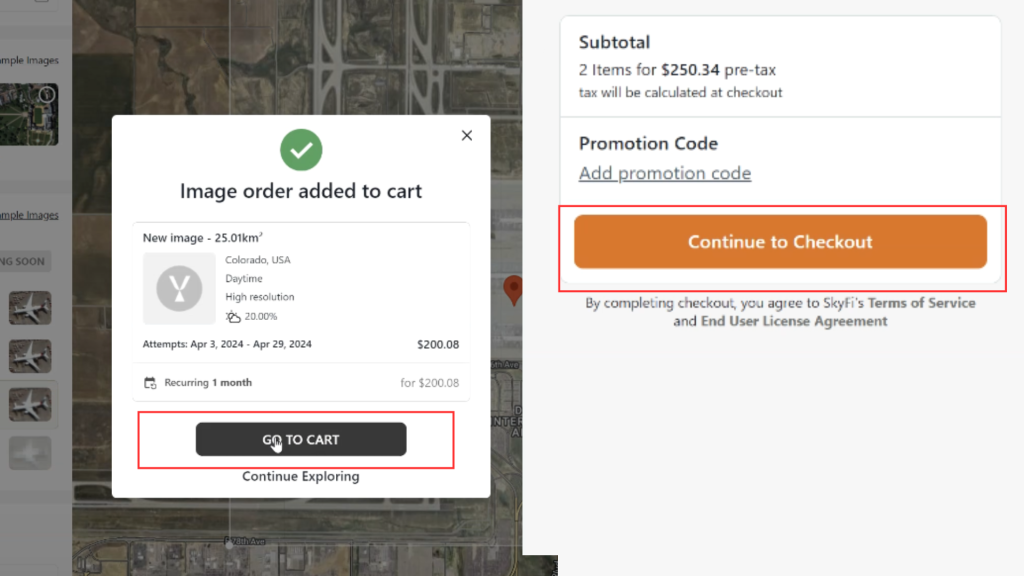
5. Complete the Order
- Click “Add to Cart.”
- Go to your Cart.
- Click “Checkout” to finalize and submit the recurring order.
Visit SkyFi now and create a recurring order yourself.