

Ordering building footprint and highlights data is simple and direct with SkyFi. This tutorial shows how to request and receive building outlines and rooftop features using satellite imagery. Whether you’re working in urban planning, construction, real estate, or insurance, understanding how to order building footprint and highlights can save time and improve project accuracy.
SkyFi offers fast access to building footprint and highlights without requiring advanced tools or technical knowledge. You select your area, confirm satellite coverage, and submit your request. The platform handles the rest, delivering clear data based on recent, high-resolution imagery.
This guide will take you through each step of the ordering process, explain what to expect during fulfillment, and show how to track your request. With SkyFi, you get control over the data you need, when and where you need it.
1. Accessing the Feature
- From the main screen, click “Browse Analytics.”
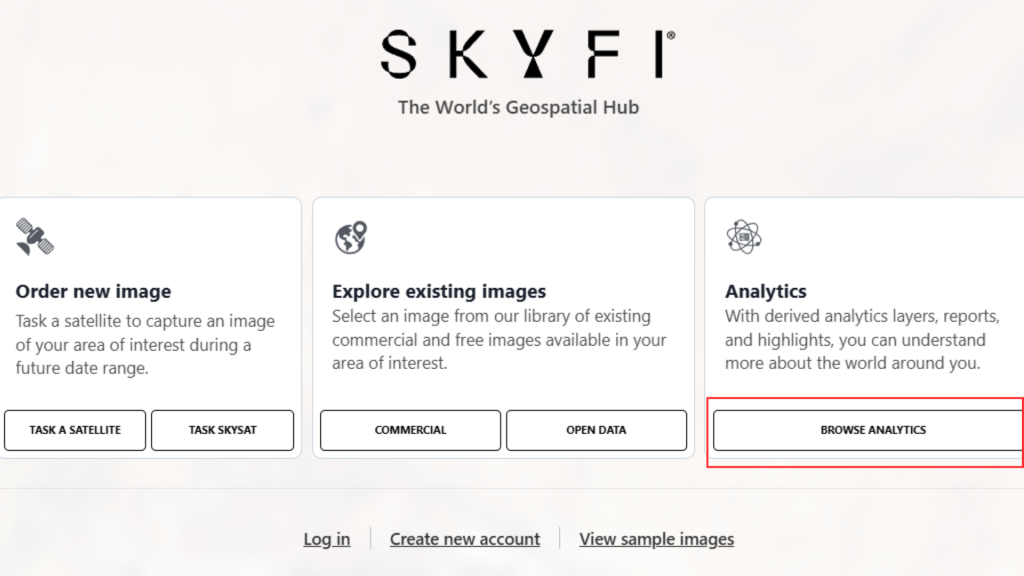
Select “Building Footprint and Highlights” from the available options.

2. Choosing the Image Source
There are three options available:
- Order New Image
- Order Existing Image
- Use an Image from My Order
For this example, the process will use an Existing Image (recommended for lower cost).
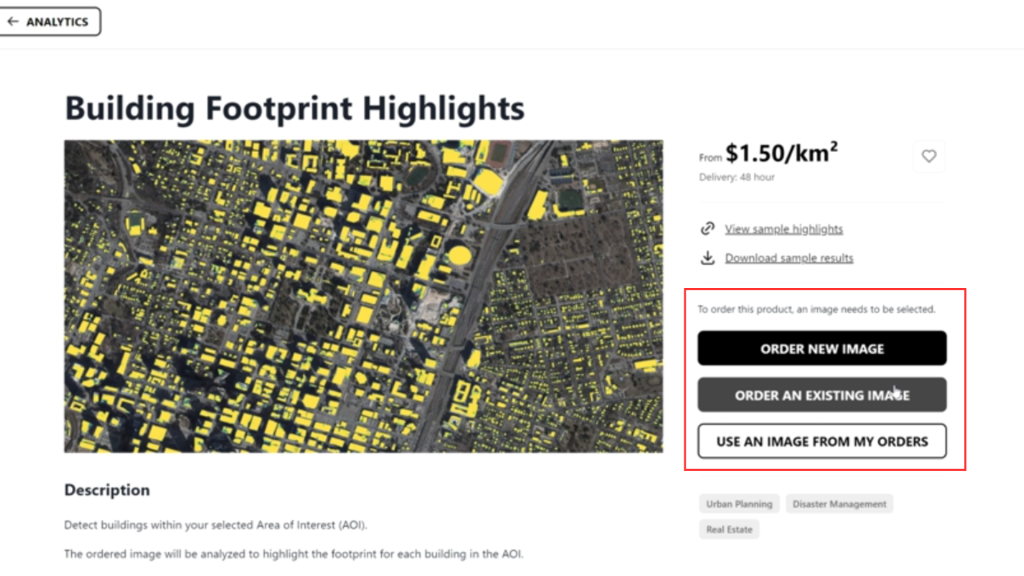
3. Selecting an Existing Image
- Click “Order Existing Image” from previous page.
- Choose the desired resolution (e.g., 50 cm).
- A preview of the existing image will be displayed.

4. Completing the Order
- Click “Add to Cart.”
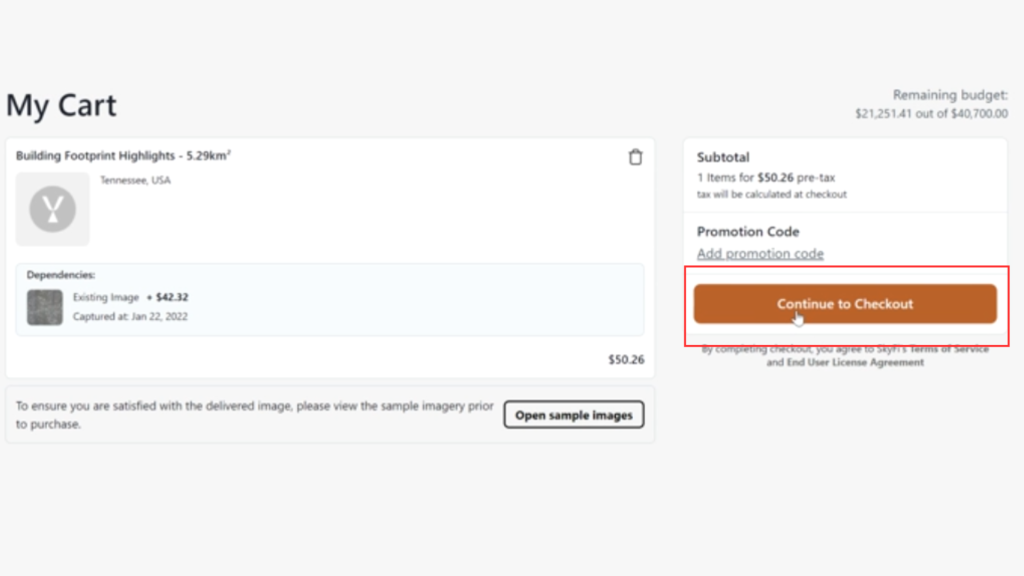
- Go to your Cart.

5. Continue to Checkout
The order will be processed, and the Building Footprint and Highlights will be generated from the selected image.
Visit the SkyFi website and try it now!