

This tutorial explains how to order Umbra Open Data through the SkyFi platform. Umbra Open Data includes a collection of Synthetic Aperture Radar (SAR) images made available to the public under an open license. These files can be used for a wide range of geospatial tasks. Access is free, but you still need to follow the correct steps to find and request the data.
The process includes locating available scenes, selecting specific images, and submitting a request through the platform. This guide outlines each step clearly so you can complete your request without delays or confusion. Whether you’re new to SAR or have worked with satellite imagery before, following these steps will help you get the data you need.
By the end of this tutorial, you will understand how to order Umbra Open Data using the SkyFi interface. This process applies to anyone with a SkyFi account and a clear area of interest.
1. Access the Open Data Section
From the SkyFi homepage, click on Open Data in the top navigation menu.

2. Select Data Source and Define Area of Interest (AOI)
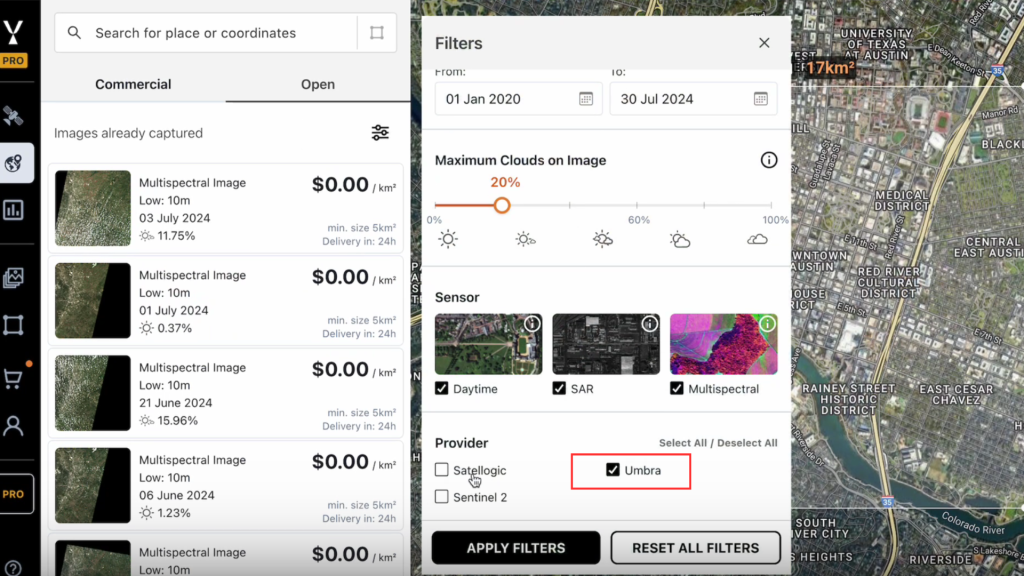
- Use the available filter options to select Umbra as the data provider.
- You can either:
- Draw a new Area of Interest (AOI) directly on the map interface, or
- Zoom out to view the global data availability map, which displays the locations of available Umbra Open Data.

3. Search and Identify Available Imagery
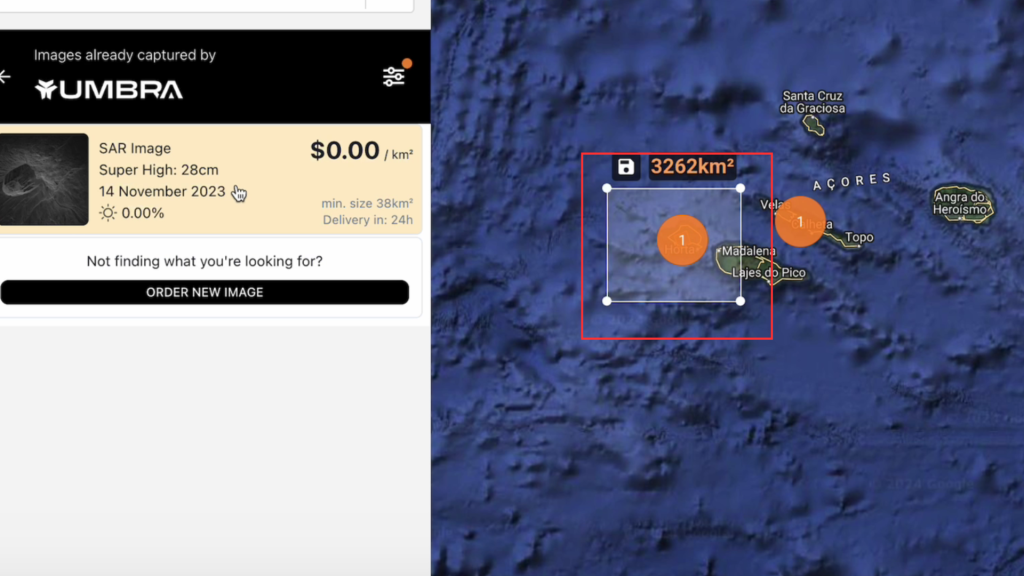
- Click on a location on the map to initiate a search in that area.
- Move or adjust the AOI box to cover a specific Umbra image.
- As the AOI overlaps with an image, that image will appear in the results panel.
4. Review Image Details
- Select an image from the results panel.
- Review the image metadata, including resolution, date, and time of capture.

5. Add to Cart and Checkout
- Click Add to Cart to include the selected image.
- Proceed to checkout.
- The cost will be listed as $0.
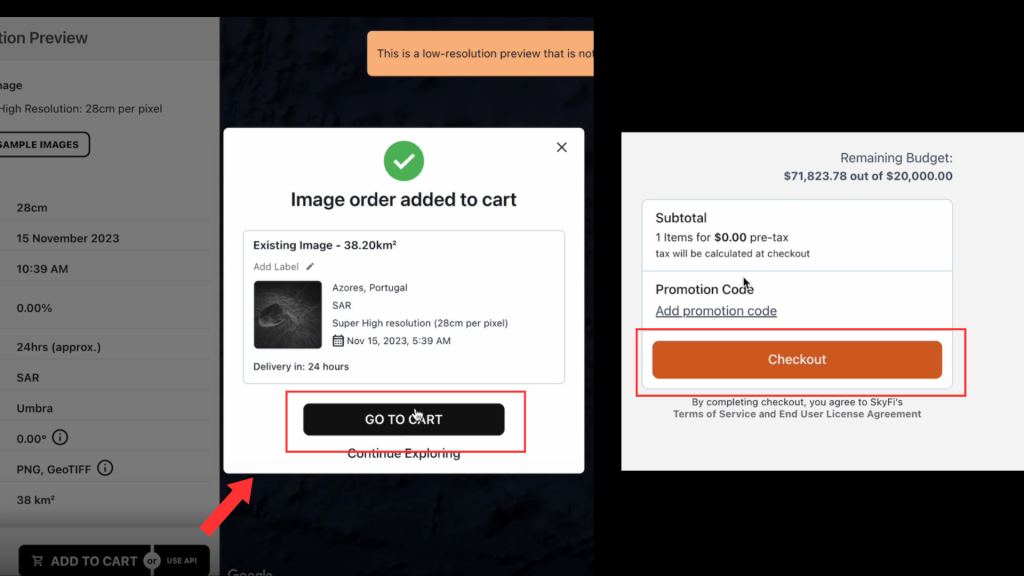
Confirm the order to receive the image via email.
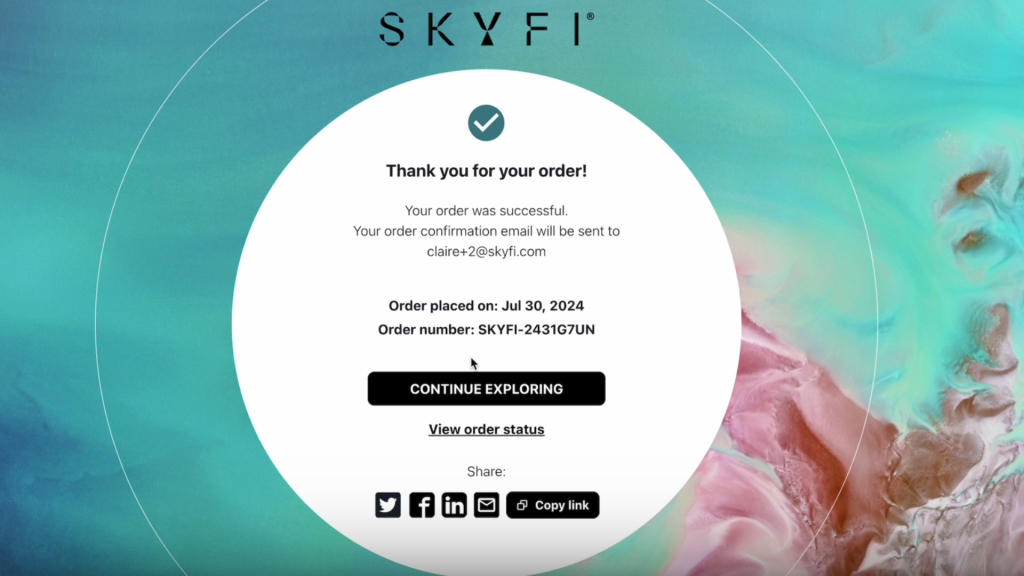
That’s it. You’re ready to order Umbra Open Data through the SkyFi platform. Check back often for new scenes.